
Ever since the second Steve Jobs era, Apple has been known for its product shots. They’re clean, crisp, detailed, and lit with just the right balance of highlight and shadow to create depth and dimension. They showcase the design of each product and make it enticing and coveted. These are the images that Apple uses in its marketing, the images that show up in reviews, and, in the past, the images that graced the pages of Mac magazines.
After wondering where news and review sites were getting their great product shots, I discovered Apple’s Newsroom site. The press release, as well as high(ish)-resolution images, are posted for each product, dating back to 2016. Being a collector of Apple media, I wanted my own copies.

Acquiring the images is easy enough: navigate to each press release and click the convenient “download all images” button to pull a zip file. For one or two press releases that’s fine, but I needed to download more than 200 press releases worth of images. I also wanted to pull the press release content alongside the images, adding additional steps and opportunity for errors.
I either needed some automation or a friend on the internet who had already done this for me. I checked the Internet Archive to see if anyone had already collected press releases, but I couldn’t find the recent ones1. I checked GitHub and did some Googling to no avail. This was going to require some work.

Auto(mation)Bots Unite!
I needed automation to do the following:
- Go to the Newsroom and load a press release
- Click the “Download all images” link at the bottom of the page to download the zip file
- “Print” the page as a PDF to capture the press release to go with the images
- Organize the PDFs and images into folders by date so they were easy-to-navigate in the future
I could have asked an LLM to help me, using one of the deep learning models available through Perplexity or using one of the AI browsers, but I decided against it. Nearly every time I’ve tried to get “the AI” to take action on my behalf, it’s taken far more effort than expected to instruct and still produced inconsistent results. I decided to solve my problem using “classic automation”: by writing a script!
Enter AppleScript
There are many different ways to automate tasks on the Mac and I had several options to choose from. Apple’s Newsroom site loads posts dynamically, so command-line wget and curl didn’t seem like good options. Chrome can run headless through a shell script but I haven’t done it before and felt that the learning curve would be too steep; I intended to spend “a half hour or so” on this automation before moving on with my day. I settled on controlling Safari through an AppleScript because I’ve heard about the Mac’s “great” scripting support.
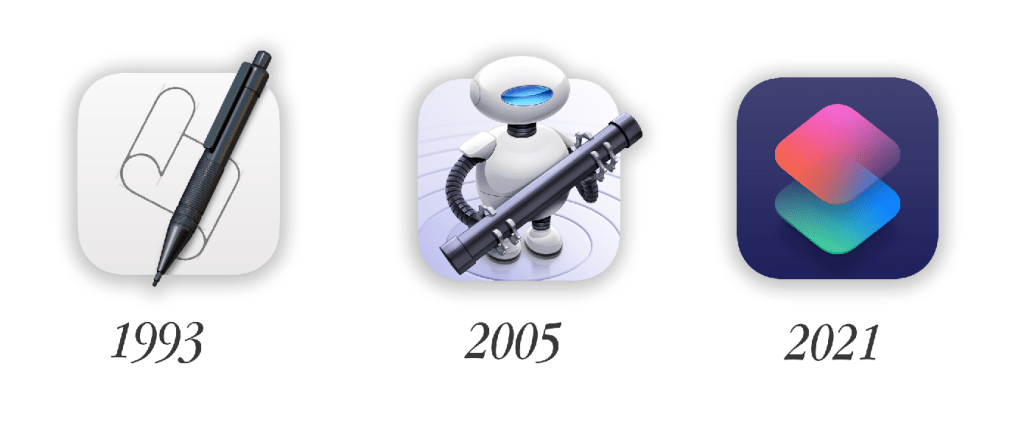
AppleScript has existed on the Mac for a long time, being introduced way back in 1993, long before OS X. It’s touted as a killer automation feature, but has a complicated history as Apple has attempted, and failed, to replace it twice – with Automator in 2005 and with Shortcuts in 2021. So far neither has fully implemented its capabilities and it sticks around as a “supported” automation option. The introduction of OS X also added Unix shell scripting into the mix. Having multiple choices can be helpful, as different solutions have different strength, but can also be confusing if they are mixed together. It’s possible for AppleScript to use other scripting tools or be used by other scripting tools.
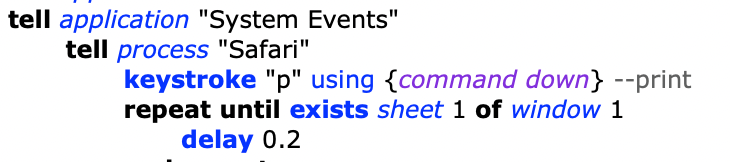
AppleScript uses an English-like syntax, making it easier to use for non-programmers. As an experienced programmer, I find the syntax more difficult, and spend too much time converting very clear programmatic concepts into “plain English” syntax. I’m not very familiar with AppleScript or its runtime environment so I went into this effort cold. I could have used Automator to record what I wanted, but I decided to be more “modern” and “vibe-code” the script directly by asking Perplexity how to script various things in Safari.
We’re Really Vibing Now
To start, I asked Perplexity to write an AppleScript that did the basic outline of what I needed:
- Navigate to a specific press release on the Newsroom site
- Use Safari’s Print to PDF feature to save the page as a PDF file
- Click the “Download all images” button to download all of the product shots in the press release
Perplexity thought for a minute and spit out an AppleScript that I pasted into Script Editor and ran. It happily loaded the page, opened the print dialog, and promptly failed because it couldn’t find the PDF button. I went back and forth with Perplexity trying to come up with some code that would work, but apparently Apple had changed Safari’s UI in a way that made finding the button super difficult. I switched to Safari’s Export as PDF option instead, which also took more work than expected, but eventually produced a PDF file. Unfortunately it output the page as a single giant image instead of the multi-page format I prefer. It wasn’t ideal, but it worked.
I kept my workaround in and successfully ran the script. The PDF was generated and saved to my home directory and the image zip from the page was saved to my Downloads folder. The image download was implemented by injecting JavaScript into the page to find the download link in the DOM and click it. Even in this basic form I was already using two scripting languages.
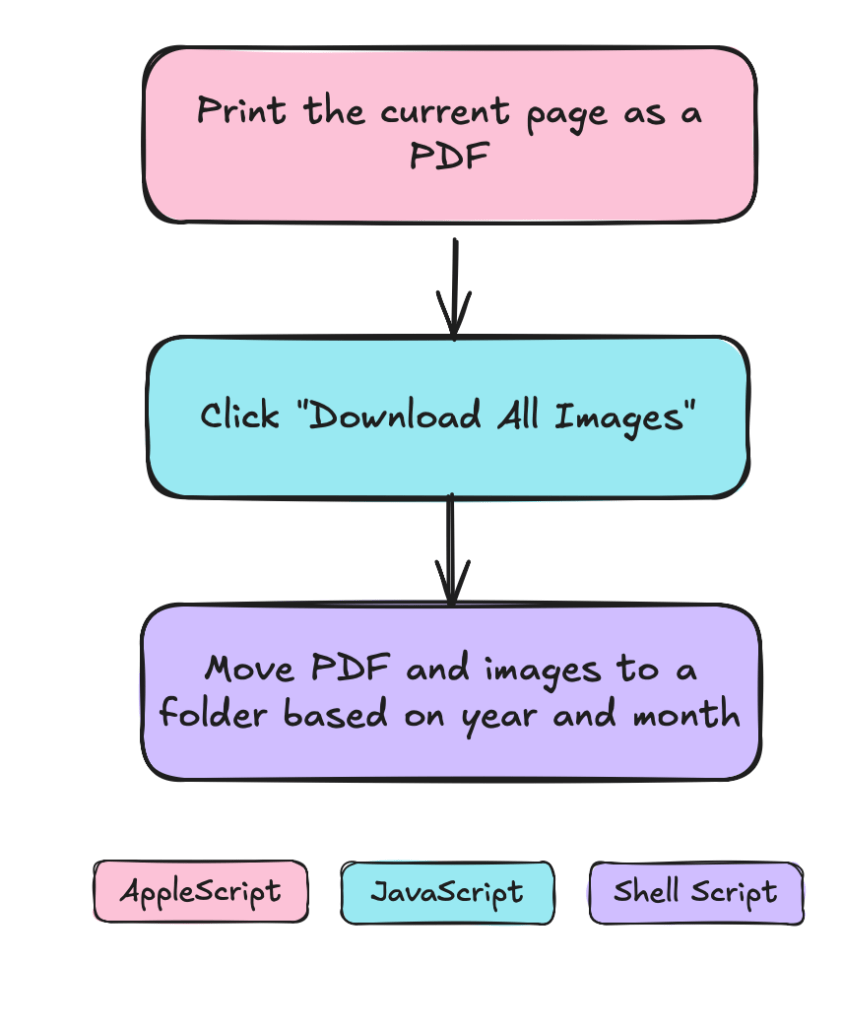
I continued working with Perplexity1 to move the zip file into the same directory as the PDF and to create a directory structure based on the year and month, which happen to be in the URL. This introduced shell script commands into my workflow to move the files. By the end I had a AppleScript loading the page and parsing the URL to create folder and file names, JavaScript telling Safari to click things, and shell scripts to move and rename files. The shell scripting was a pain because the commands execute without user context and it took me way too long to realize that I needed exact pathing.
Once I had a basic version working I went to the Internet to find a way to get Print to PDF functioning. It turned out that Stack Overflow had my answer. Take that AI! At the end of the process I had a script that did what I needed.
A Script Only An Author Could Love
My script is simple but ugly. It gets the job done, but took far longer than “30 minutes” to create. It took an entire morning. I spent most of my time blindly trying to figure out why straightforward things didn’t work. This was largely because AppleScript has no debugger. Ummm, excuse me? That’s right. No debugger. There’s a third party debugger but I wanted to do it “the standard way” at the expense of my own pain. I got what I was looking for.
The only way to debug an AppleScript without third party tools is through log statements. Now I can log-debug with the best of them and actually prefer it in some scenarios, but the logging has to be capable. I needed to log the contents of screen objects to figure out how to access the Print to PDF button, but couldn’t log anything more than the name without knowing what I wanted . Some languages could log the object and all of its properties, and failing that, could set a breakpoint and explore interactively. AppleScript doesn’t support either out of the box.
I also found that log statements didn’t always print even though the script performed steps that occurred after. I ended up using dialog statements to figure out where the script was dying. Overall the development experience was horrible, like coding in the dark without a flashlight3.
The End (for now)
My script is pretty jankey, but it works. It leverages three different scripting languages to do what it needs to do and employs a few “wait several seconds” calls to address timing issues. Because it controls Safari I can watch it in real time and I’ve coded a dialog to pop up at the end so I know it’s done. While I could have manually pulled all of the press releases, this script made it really easy. I probably would have spent as much or more time manually pulling the 200 press releases anyway. I learned a bit about AppleScript and would probably use one of those retired tools in the future, at least until they become totally broken by the passing of time.
I’ve also got a tool that I can use to keep up with new press releases as they come… until Apple changes the print dialog again…
- I did find a cache of older product images, brochures, and videos going back to the eighties, whic I’ highly recommend it. ↩︎
- And by “working” I mean I asked it how to do something, copied the code into Script Editor, watched it fail, and asked for different code until it started working. There was no Github Co-pilot or Claude Code going on here. ↩︎
- There are some third party tools that provide a much more robust development environment. One is UI Browser, which provides a way to inspect UI elements to locate them in a script. It was retired in 2022. The other is Script Debugger, which is a full IDE that supports UI exploration and debugging. It was retired in June. ↩︎
 Relatively Ambitious